Figma MCP Bridge

While other amazing Figma MCP servers like Figma-Context-MCP exist, one issues is the API limiting for free users.
The limit for free accounts is 6 requests per month, yes per month.
Figma MCP Bridge is a solution to this problem. It is a plugin + MCP server that streams live Figma document data to AI tools without hitting Figma API rate limits, so its Figma MCP for the rest of us ✊
It supports multiple Figma files connected simultaneously; open the plugin in each file and your AI agent can query any of them by fileKey. Single-file setups work exactly as before with no changes required.
It also includes a small, opt-in set of write tools for safe agent-driven edits — see Editing Notes below.
Demo
Watch a demo of building a UI in Cursor with Figma MCP Bridge
Quick Start
1. Add the MCP server to your favourite AI tool
Add the following to your AI tool's MCP configuration (e.g. Cursor, Windsurf, Claude Desktop):
{
  "figma-bridge": {
    "command": "npx",
    "args": ["-y", "@gethopp/figma-mcp-bridge"]
  }
}
That's it — no binaries to download or install.
2. Add the Figma plugin
Download the plugin from the latest release page, then in Figma go to Plugins > Development > Import plugin from manifest and select the manifest.json file from the plugin/ folder.
3. Start using it 🎉
Open a Figma file, run the plugin, and start prompting your AI tool. The MCP server will automatically connect to the plugin.
To work across multiple files, just open the plugin in each Figma file. The bridge keeps all connections active and your AI agent can target any of them by fileKey.
If you want to know more about how it works, read the How it works section.
Available Tools
Tool Description
list_files
List all connected Figma files (supports multi-file workflows)
get_document
Get the current Figma page document tree
get_selection
Get the currently selected nodes in Figma
get_node
Get a specific Figma node by ID (colon format, e.g. 4029:12345)
get_styles
Get all local paint, text, effect, and grid styles
get_metadata
Get file name, pages, and current page info
get_design_context
Get a depth-limited tree optimized for understanding design context
get_variable_defs
Get all variable collections, modes, and values (design tokens)
get_screenshot
Export nodes as PNG/SVG/JPG/PDF (base64-encoded)
save_screenshots
Export and save screenshots directly to the local filesystem
get_motion_styles
List all available animation presets (beta)
get_node_motion
Read a node's current animation styles and properties (beta)
apply_animation_style
Apply a preset animation style to a node (beta)
remove_animation_style
Remove an applied animation style from a node (beta)
apply_manual_keyframe_track
Apply a manual keyframe track to a node property (beta)
remove_manual_keyframe_track
Remove a manual keyframe track from a node property (beta)
set_timeline_duration
Set the duration of a timeline in seconds (beta)
set_node_visibility
Show or hide specific nodes
set_text_content
Replace the contents of a text node
set_text_properties
Patch font, size, alignment, auto-resize, color, and bounds on a text node
set_node_properties
Patch common node properties: name, position, size, visibility, opacity, corner radius
set_solid_fill
Replace a node's fill or stroke with a single solid paint
set_gradient_fill
Replace a node's fill or stroke with a linear/radial/angular/diamond gradient
set_effects
Replace a node's effects list (drop/inner shadows, layer/background blurs)
set_stroke_properties
Patch stroke weight, align, dash pattern, cap, and join
set_auto_layout
Configure auto-layout direction, padding, gap, alignment, sizing, and wrap
create_frame
Create a new frame, optionally under a parent
create_text
Create a new text node
create_shape
Create a rectangle, ellipse, or line
create_image
Create an image-backed rectangle from a local path, URL, or data URI
duplicate_nodes
Duplicate nodes in place
reparent_nodes
Move nodes into another parent
group_nodes
Wrap a list of nodes (sharing a parent) in a new group
ungroup_node
Ungroup a group or frame — children move up to its parent
set_selection
Set the page selection to a list of node IDs (works in Dev Mode)
scroll_and_zoom_into_view
Frame the viewport around the given nodes (works in Dev Mode)
delete_nodes
Delete nodes with explicit confirmation
All tools accept an optional fileKey parameter when multiple Figma files are connected. Use list_files to discover connected files and their keys.
Editing Notes
-
Edit tools work only when the plugin is opened in Figma's design editor (Dev Mode is read-only — they will return a clear error there).
-
The current user must have permission to edit the target file.
-
delete_nodesis intentionally gated behindconfirm: true. -
Text edits automatically load the fonts currently used by the target text node before applying the new content.
-
New text nodes default to
Inter Regularunless a font is provided. -
create_imagereads local paths relative to the MCP server working directory unless you pass an absolute path.
What You Can Build
With the current write surface, an agent can build a basic slide deck in a new empty Figma file: create slide frames, style titles and body copy, lay out rectangles/ellipses/lines for cards and dividers, duplicate slide templates, reparent content into the right frame, and adjust common geometry/visual properties — including solid/gradient paints, shadows and blurs, stroke geometry, and auto-layout configuration.
The current version is intentionally limited — no components/instances, no variables/styles authoring, no per-segment text styling, and no vector boolean operations yet.
Local development
1. Clone this repository locally
git clone git@github.com:gethopp/figma-mcp-bridge.git
2. Build the server
cd server && npm install && npm run build
3. Build the plugin
cd plugin && bun install && bun run build
4. Add the MCP server to your favourite AI tool
For local development, add the following to your AI tool's MCP config:
{
  "figma-bridge": {
    "command": "node",
    "args": ["/path/to/figma-mcp-bridge/server/dist/index.js"]
  }
}
Structure
Figma-MCP-Bridge/
├── plugin/   # Figma plugin (TypeScript/React)
└── server/   # MCP server (TypeScript/Node.js)
    └── src/
        ├── index.ts      # Entry point
        ├── bridge.ts     # WebSocket bridge to Figma plugin
        ├── leader.ts     # Leader: HTTP server + bridge
        ├── follower.ts   # Follower: proxies to leader via HTTP
        ├── node.ts       # Dynamic leader/follower role switching
        ├── election.ts   # Leader election & health monitoring
        ├── tools.ts      # MCP tool definitions
        └── types.ts      # Shared types
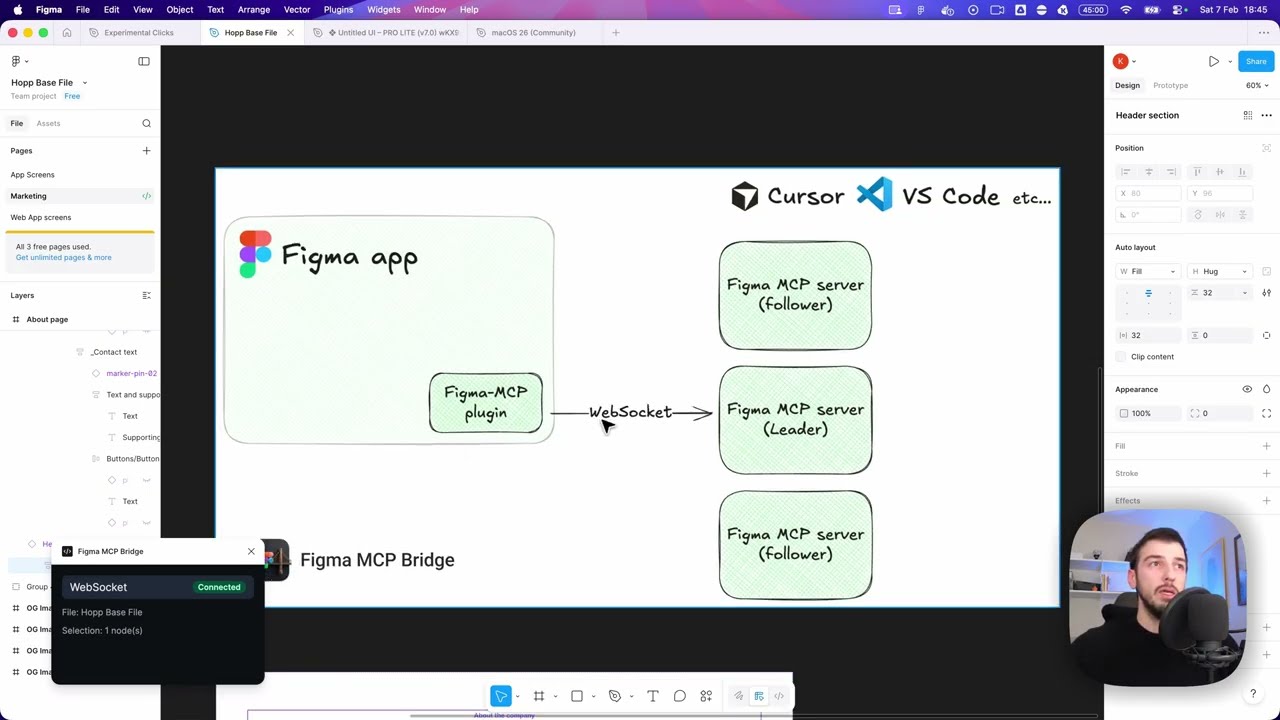
How it works
There are two main components to the Figma MCP Bridge:
1. The Figma Plugin
The Figma plugin is the user interface for the Figma MCP Bridge. You run this inside the Figma file you want to use the MCP server for, and its responsible for getting you all the information you need.
2. The MCP Server
The MCP server is the core of the Figma MCP Bridge. It maintains a registry of WebSocket connections keyed by fileKey, so multiple Figma files can be connected simultaneously. The server is responsible for:
-
Handling WebSocket connections from one or more Figma plugin instances
-
Routing tool calls to the correct file based on
fileKey -
Forwarding responses back to the AI client
-
Handling leader election (as we can have only one WS connection to an MCP server at a time)
┌─────────────────────────────────────────────────────────────────────────────┐
│                              FIGMA (Browser)                                │
│  ┌───────────────────────────────────────────────────────────────────────┐  │
│  │                         Figma Plugin                                  │  │
│  │                    (TypeScript/React)                                 │  │
│  └───────────────────────────────────────────────────────────────────────┘  │
└─────────────────────────────────────────────────────────────────────────────┘
                                      │
                                      │ WebSocket
                                      │ (ws://localhost:1994/ws)
                                      ▼
┌─────────────────────────────────────────────────────────────────────────────┐
│                          PRIMARY MCP SERVER                                 │
│                         (Leader on :1994)                                   │
│  ┌─────────────────────────────────────────────────────────────────────┐    │
│  │  Bridge                                    Endpoints:               │    │
│  │  • Manages WebSocket conn                  • /w