🧑💻 Prompt Line

English | 日本語
Overview
Prompt Line is a macOS app developed to improve the prompt input experience in the terminal for CLI-based AI coding agents such as Claude Code, Codex CLI, and Gemini CLI. It provides a comfortable input experience through a floating window.
Key capabilities:
- Quick input, quick paste — Floating window with
Cmd+Shift+Space, paste anywhere withCmd+Enter - Context search — Search agent skills, files, symbols, and more with
/and@, with prompt history reuse - Extensible via plugins — Add custom search and skills with simple YAML files (Plugin Guide)
Features
Quick Launch, Quick Paste
Quick launch with shortcut (Cmd+Shift+Space).
Type text and quick paste (Cmd+Enter).
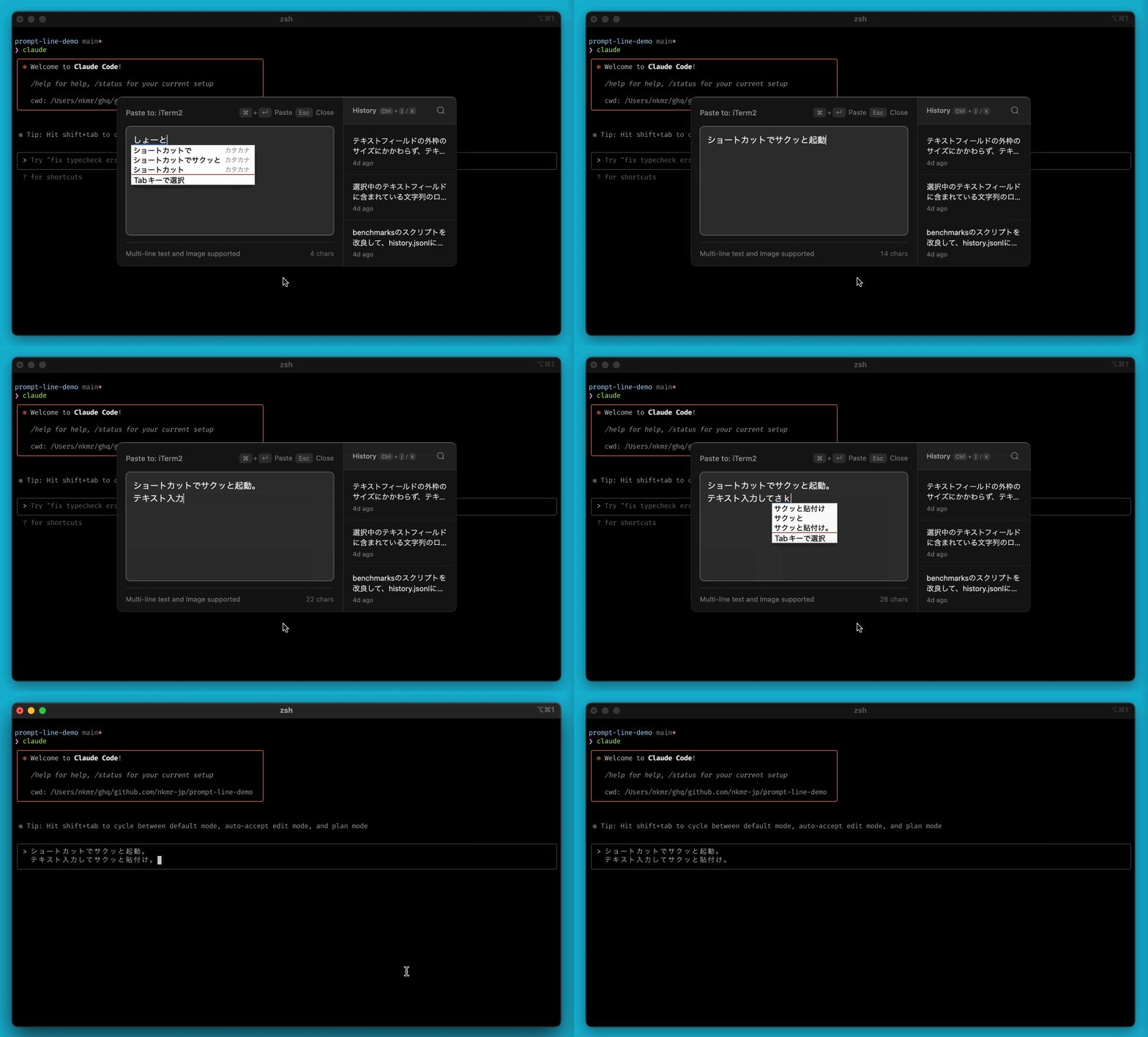
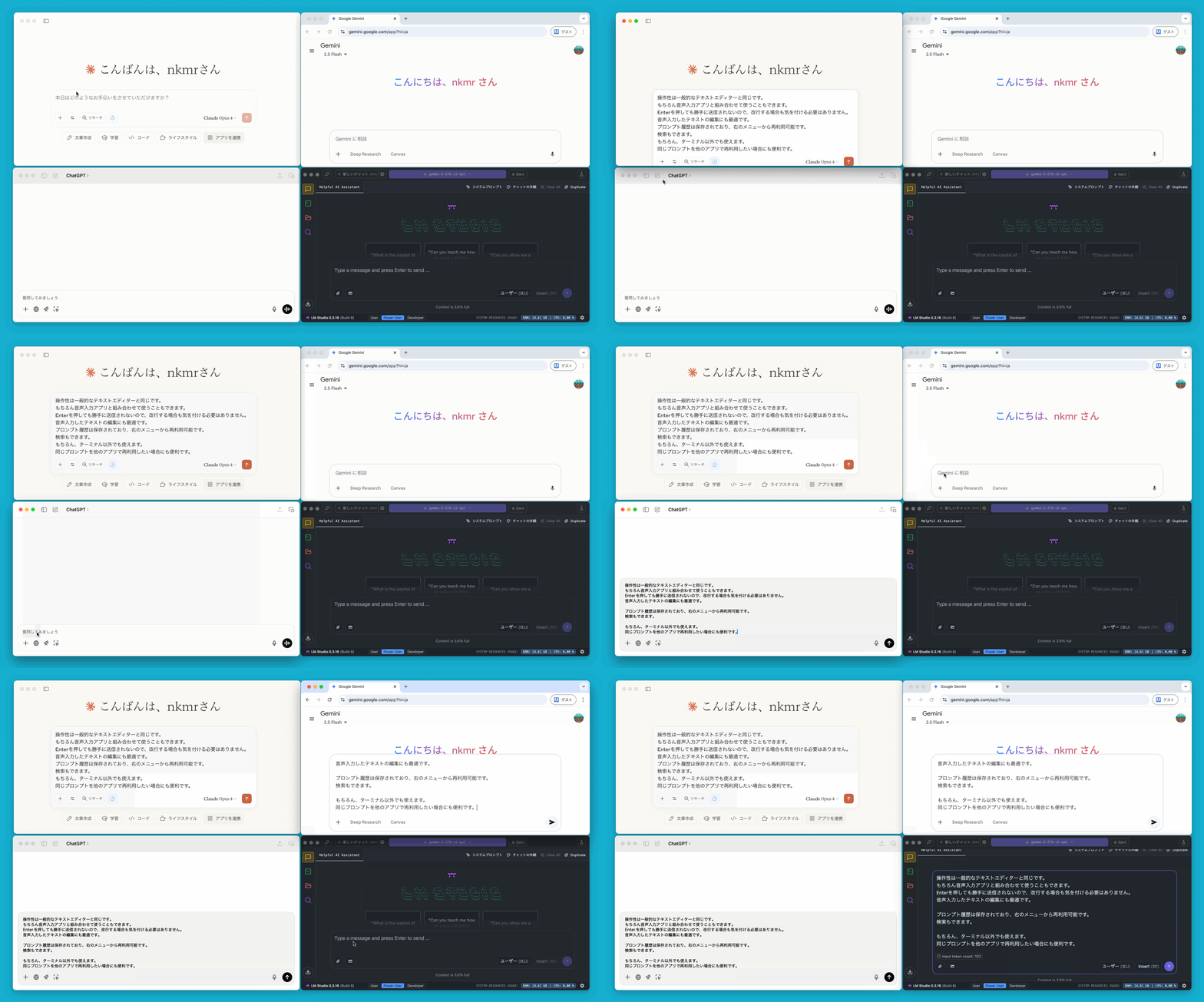
Perfect for Editing Voice-Inputted Text
The operation is the same as a typical text editor.
Of course, you can also use it in combination with a voice input app.
Pressing Enter will not automatically send the text, so you don't have to worry about line breaks.
It is also ideal for editing text entered by voice.
(This video uses superwhisper.)
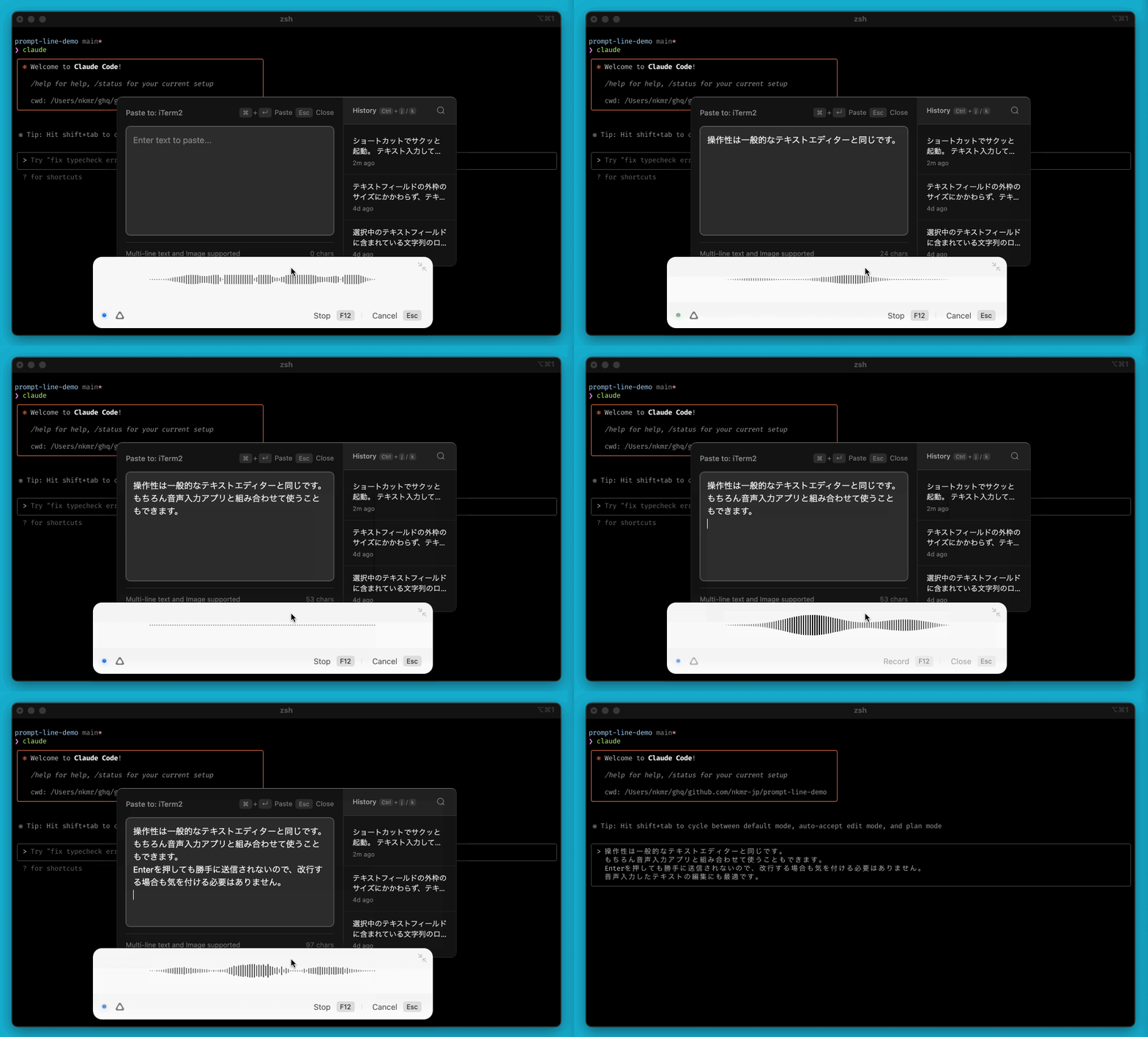
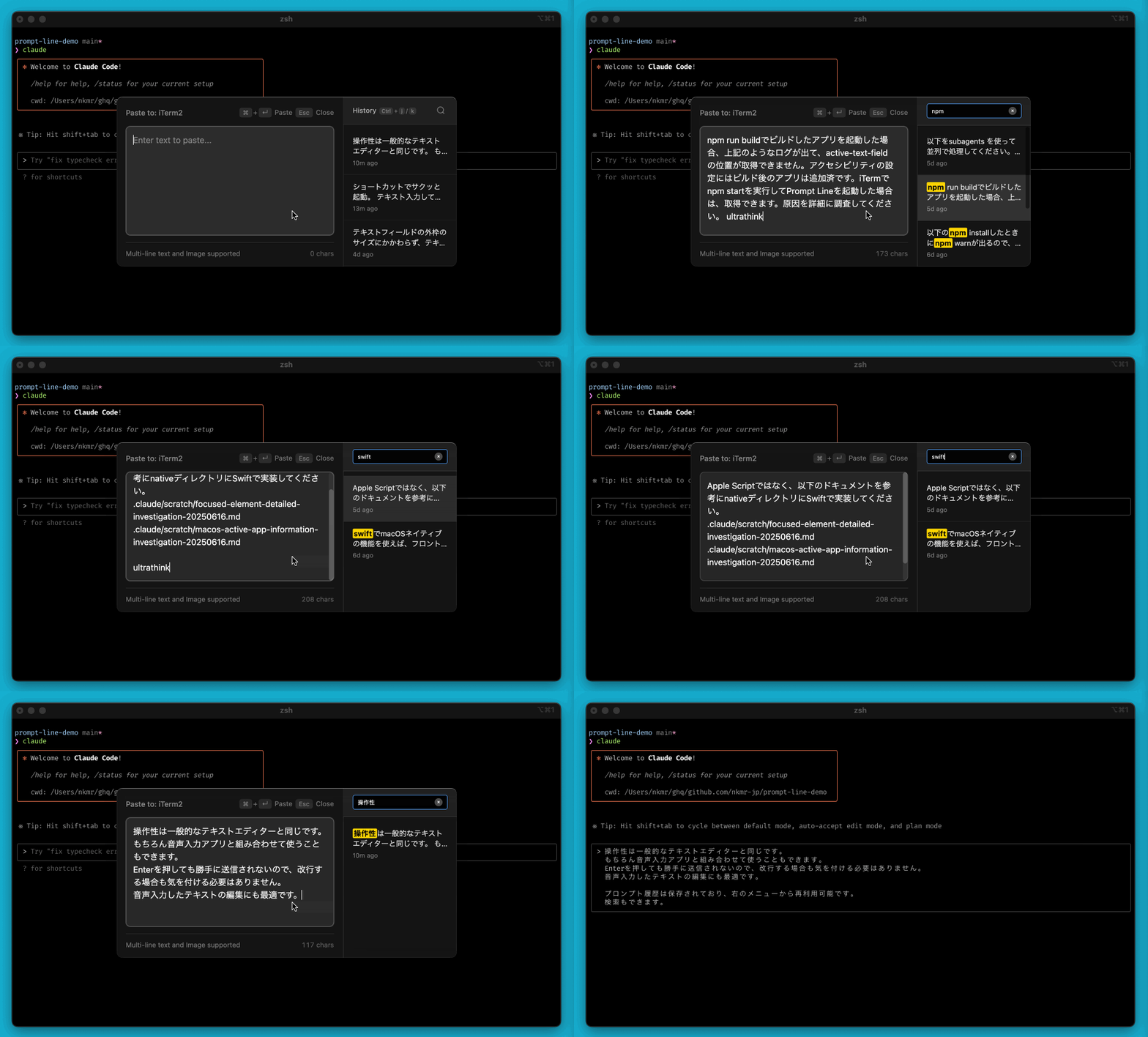
Search and Reuse Prompt History
Prompt history is saved and can be reused from the right menu.
Search is also available. (Cmd+f)
Launch Anywhere
Can be launched anywhere there's a text input field.
Also convenient when you want to reuse the same prompt in other apps.
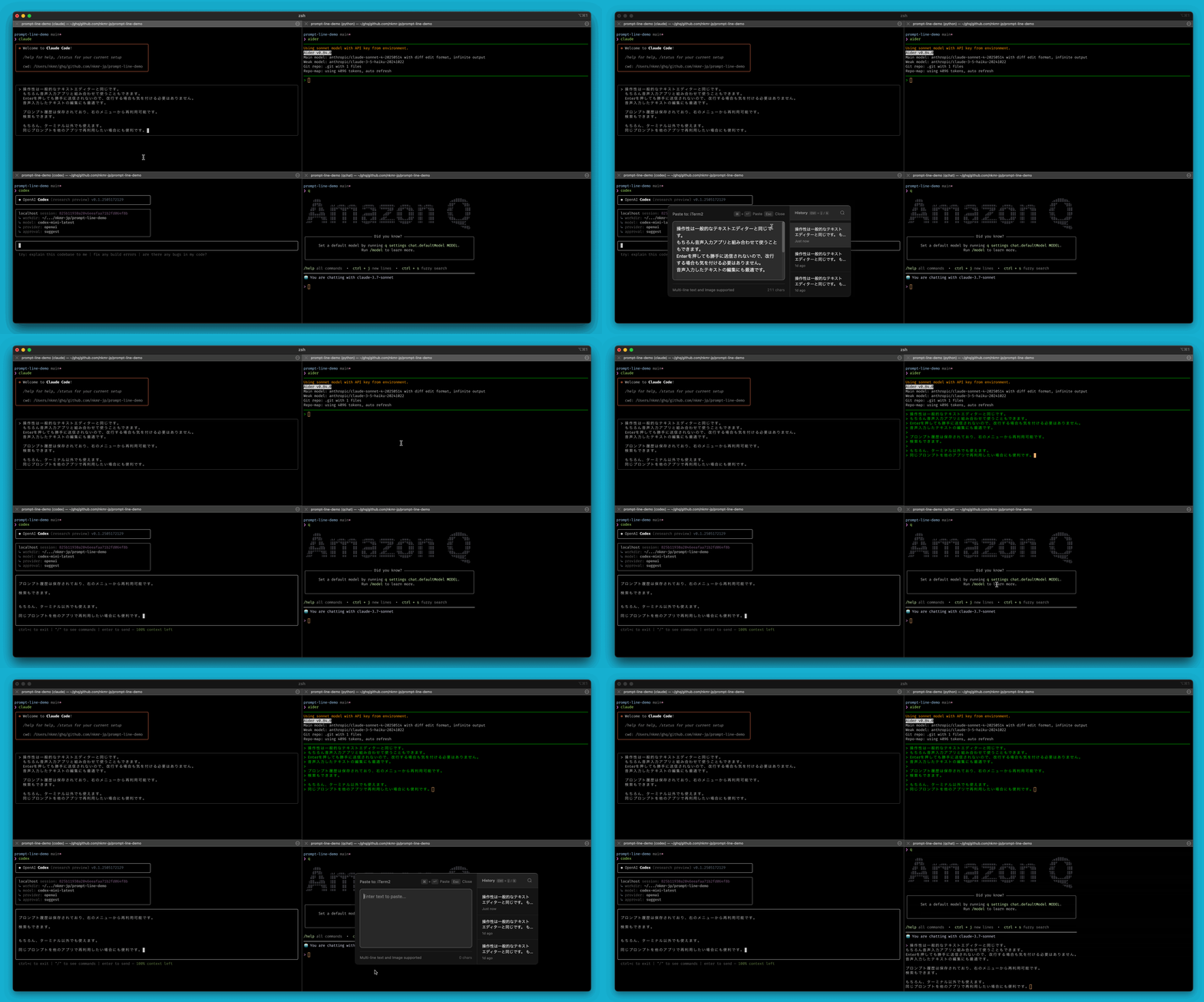
Of course, it also works with apps other than Terminal.
Context Search and Autocomplete
Type / or @ to search and autocomplete contexts such as agent skills, built-in commands, files, and symbols.
These can be extended with plugins. See: Plugin Guide | prompt-line-plugins
Agent Skills and Built-in Commands 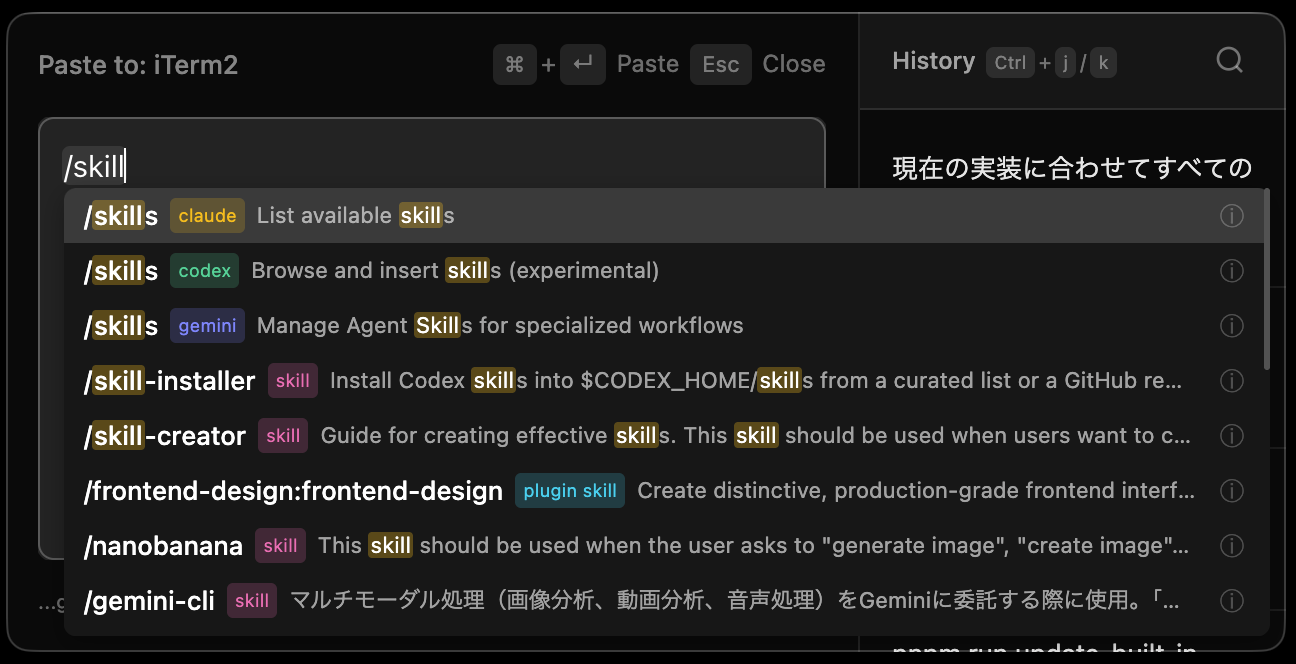 | File and Directory Search 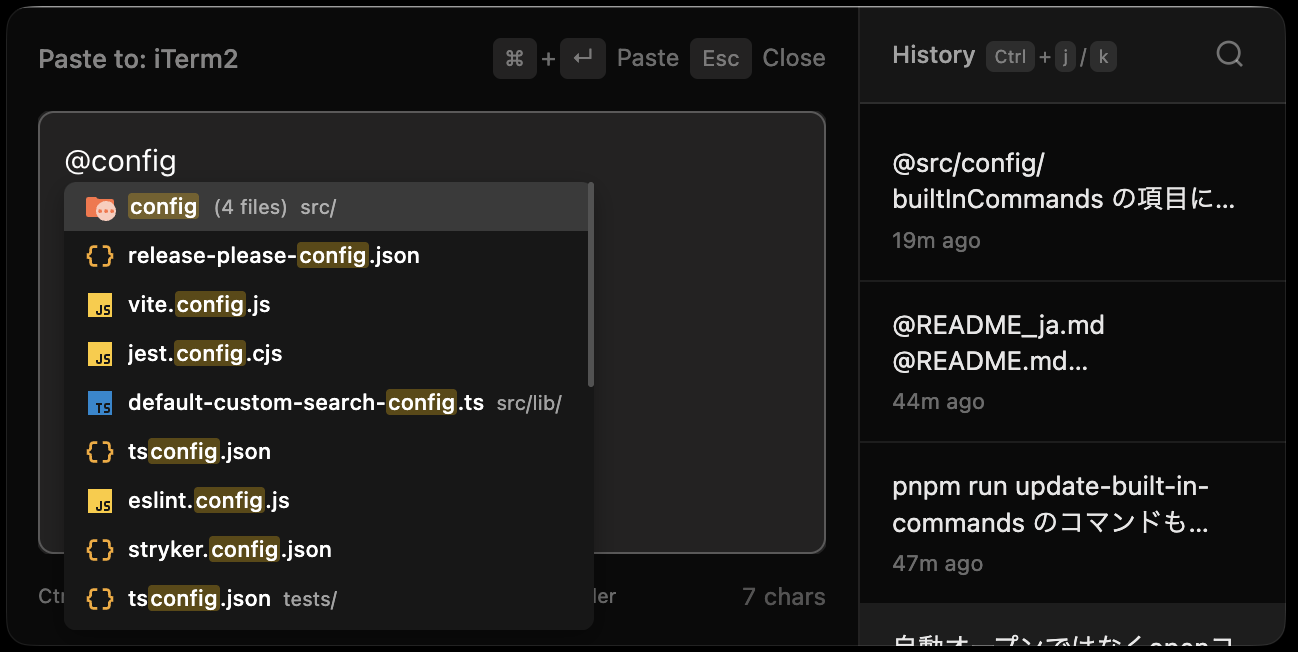 |
Symbol Search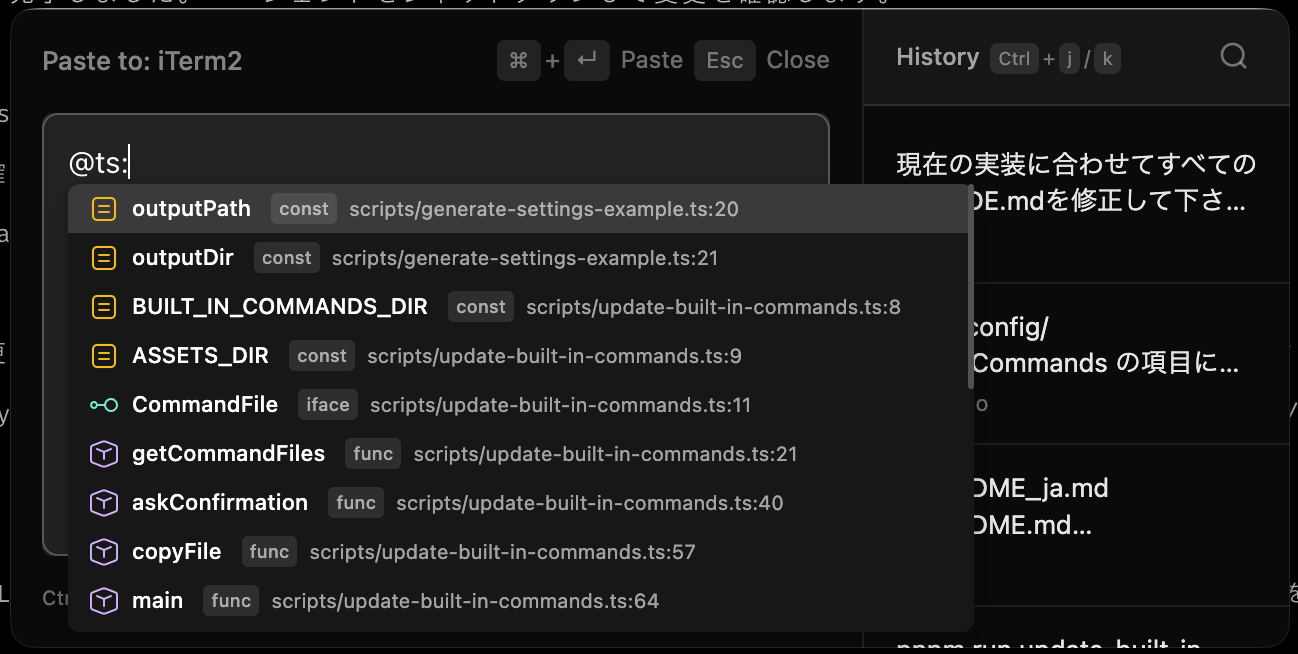 | Custom Search (@agent:, @plan:, @team:, etc.) 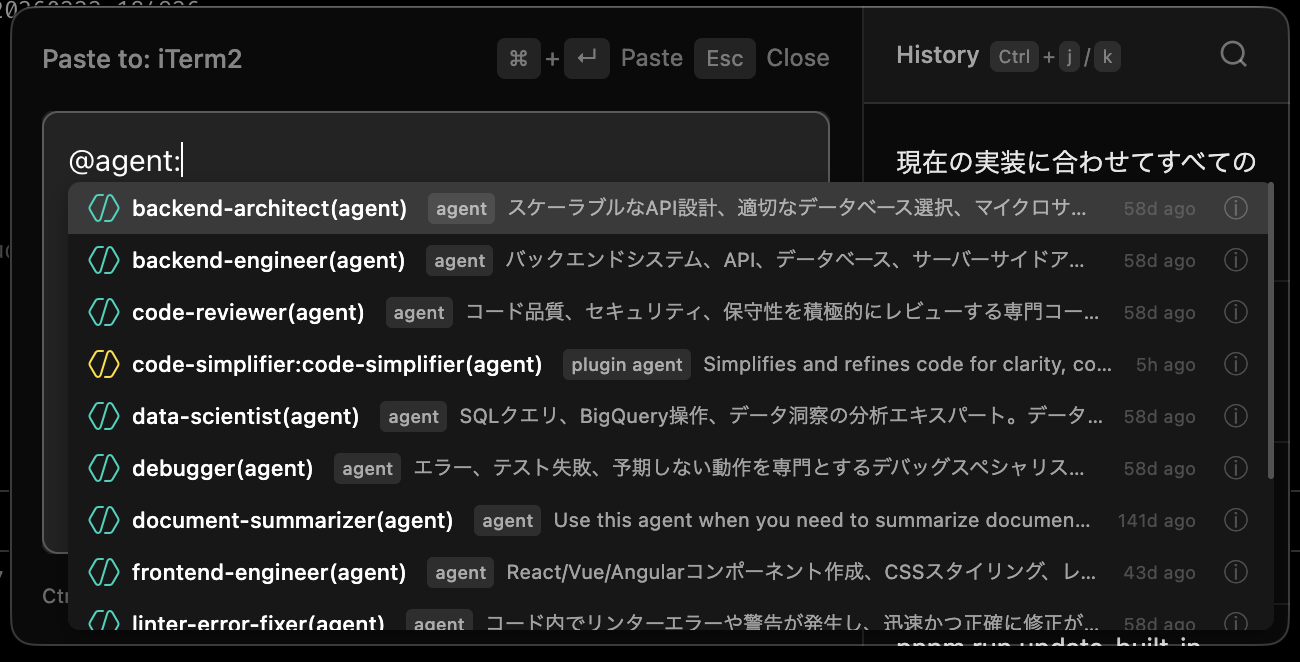 |
📦 Installation
System Requirements
- macOS 10.14 or later
- Node.js 20 or later
- pnpm
- Xcode Command Line Tools or Xcode (for compiling native tools)
- fd and rg (ripgrep) (for file search and symbol search features)
Prompt Line Installation
git clone https://github.com/nkmr-jp/prompt-line.git
cd prompt-line
git checkout v0.x.x  # Optional: replace with desired version tag
pnpm install
pnpm run install-app    # Build and install to /Applications (includes code signing setup)
Launch Prompt Line. An icon will appear in the system tray.
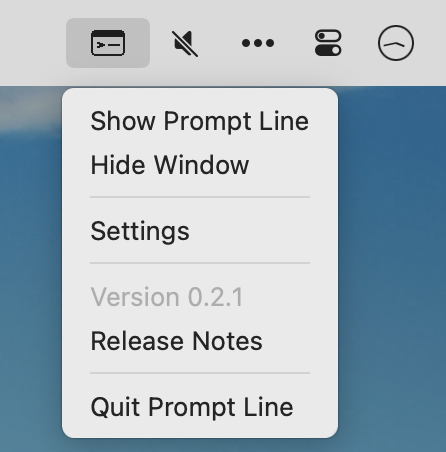
You can start using it with Cmd+Shift+Space.
Accessibility Permissions
Prompt Line requires accessibility permissions to paste text into other applications. A dialog box will appear on first use, so follow the instructions to set it up.
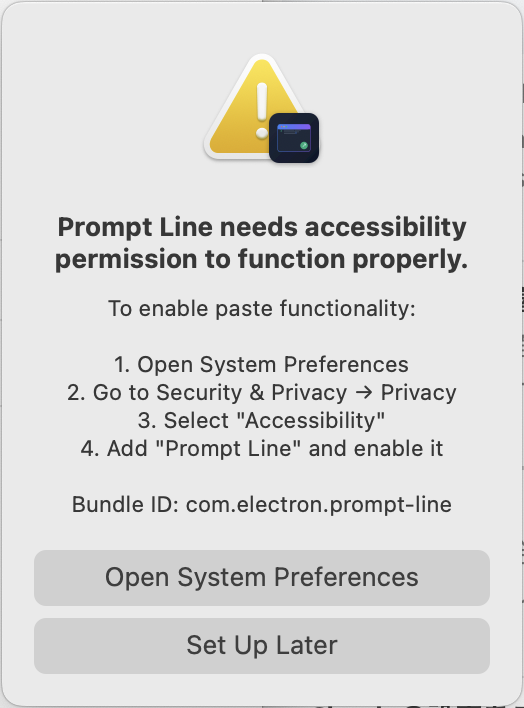
Troubleshooting
If the accessibility permissions dialog box does not appear
- Open System Settings → Privacy and Security → Accessibility.
- Find “Prompt Line” in the list and enable it.
- If it is not in the list, add Prompt Line from Applications using the “+” button.
If “Prompt Line” is enabled in Accessibility Permissions but you still cannot paste
- Open System Settings → Privacy and Security → Accessibility
- Delete “Prompt Line” from Applications using the “-” button to reset permissions
- The issue should be resolved after reconfiguring settings.
Accessibility permissions can also be reset using the following command:
pnpm run reset-accessibility
📦 Update
If you already have an older version installed and want to update to the latest version:
git pull
pnpm install
pnpm run install-app
pnpm run migrate-settings        # Migrate settings to latest defaults (auto-backup)
Usage
Basic Workflow
- Move to where you want to input
- Press
Cmd+Shift+Spaceto open Prompt Line - Type your text
- Press
Cmd+Enterto paste text - Continue working
Features
- History Panel - Click previous entries to reuse. Search is also available. (
Cmd+f) - Draft Autosave - Automatically saves your work
- Image Support - Paste clipboard images with
Cmd+V - File Opener - Open files from file path text (
Ctrl+EnterorCmd+Click) - File Search - Search files by typing
@ - Symbol Search - Search code symbols by typing
@<lang>:<query>(e.g.,@ts:Config) - Custom Search - Search agents, plans, teams, history, etc. by typing
@prefix:(extensible with plugins)
⚙️ Settings
Settings file: ~/.prompt-line/settings.yaml (hot-reloaded, no restart needed)
See: Settings Reference | settings.example.yaml | Migration Guide
Per-App Directory Fallback
Prompt Line detects the working directory of the app you came from, so @ file search
opens on the right project. Some apps have no directory to detect — browsers and other
non-terminal apps. For those, ~/.prompt-line/app-directories.json pins one:
{
  "com.google.Chrome": "/Users/me/ghq/github.com/me/my-project"
}
A flat map of macOS bundle id to absolute path. Find an app's bundle id by bringing it to the front and running:
"/Applications/Prompt Line.app/Contents/Resources/app.asar.unpacked/dist/native-tools/window-detector" current-app
# {"bundleId":"com.google.Chrome","name":"Google Chrome"}
Auto-detection always wins. An entry only takes over on the launches where detection came back with nothing. For a terminal or an IDE that is normally never, so an entry there has no visible effect — but it will still step in on a launch where detection happens to time out, which can look like the directory jumping somewhere else at random. Keep entries to apps that have no directory to detect.
Note that whichever directory is used — detected or pinned — becomes the global last-used
directory, so it is also what other apps fall back to when their own detection fails, and
what {projectdir} expands to.
Set a value to "" to switch an entry off without removing the key. The file is re-read
whenever it changes, so edits apply on the next launch of the input window.
🔌 Plugins
Plugins are YAML files that add agent skills (/), custom search (@prefix:), and built-in commands/skills/agents for CLI tools.
Quickest way: Place a YAML file in ~/.prompt-line/agent-skills/, ~/.prompt-line/custom-search/, or ~/.prompt-line/agent-built-in/ — no GitHub repo needed.
Share via GitHub: Install plugins from repositories:
# Global CLI setup (run once in the prompt-line project directory)
pnpm add -g .

# Install plugins
prompt-line-plugin install github.com/nkmr-jp/prompt-line-plugins
prompt-line-plugin install github.com/user/repo@branch   # specific version
Details: docs/en/plugins.md
Example repo: prompt-line-plugins
Prompt History
- All data stored locally on your Mac
- No internet connection required
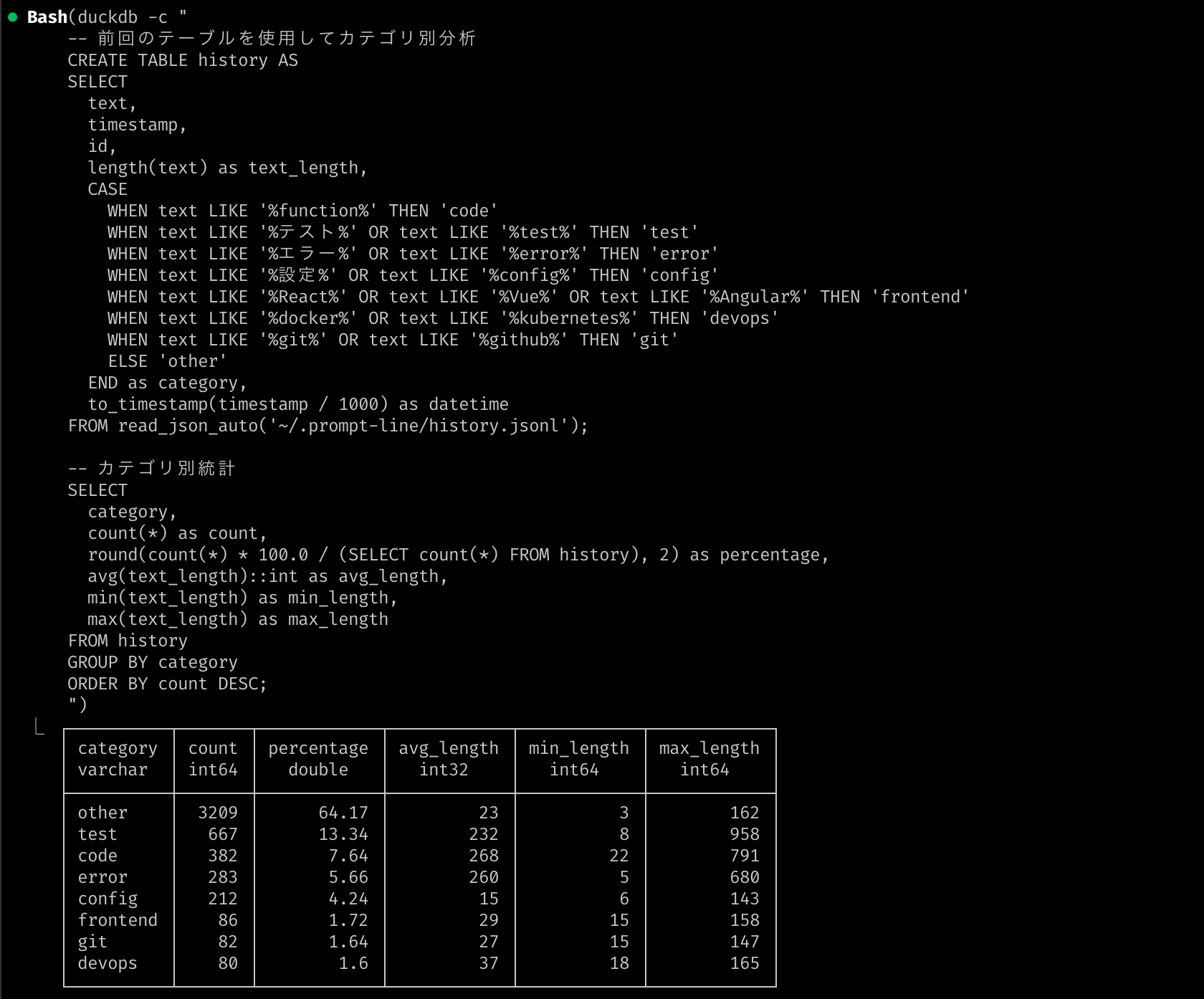
- Prompt history saved in
~/.prompt-line/history.jsonl - Saved in JSON Lines format, so you can analyze it using DuckDB
Contributing
See Contribution Guide for details.
License
MIT License - see LICENSE for details.